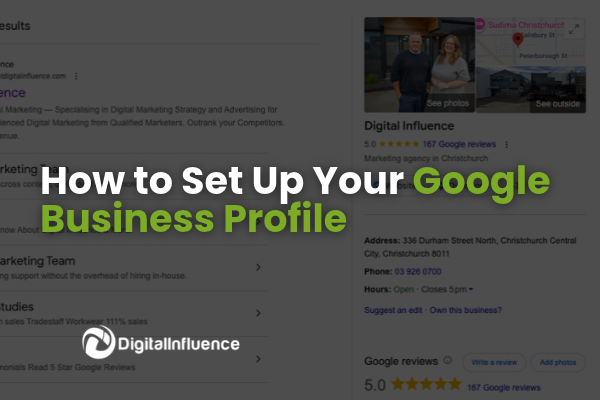
When someone in your area searches for what you do, your Google Business Profile is often the first thing they see. It shows your hours, location, phone number, photos and reviews right there in Google Search and Maps, usually before anyone gets to your website.
It’s free, and it’s one of the most valuable marketing tools a local business has. But a lot of NZ profiles are only half set up, out of date or stuck in verification. This guide walks you through setting one up properly from scratch, then shows you how to optimise it so it brings in calls, visits and enquiries.
What Is a Google Business Profile?
A Google Business Profile (it used to be called Google My Business) is your free business listing on Google. It appears in the map results when people search for things like “electrician near me” or “café Ponsonby”, and in the panel on the right of the search results when someone searches your business name.
Google’s own data shows businesses with complete profiles get up to seven times more clicks than those with incomplete ones. Google also uses your profile, along with your reviews and website, to answer questions about your business in its AI features, so the information on it matters more than ever.
Before You Start
Have these ready before you begin:
- A Google account you’ll use for the business (ideally one with your business email address, not a staff member’s personal Gmail)
- Your business name exactly as it appears on your signage, invoices and website
- Your address, or the areas you serve if customers don’t come to you
- Your phone number, website and opening hours
- A handful of good, real photos of your business, team and work
It’s also worth searching your business name on Google Maps first. Google sometimes creates a profile automatically, and if one already exists you should claim it rather than create a second one. Duplicate profiles can get your account suspended.
Step 1: Create or Claim Your Profile
Go to business.google.com and sign in with your business Google account. Type in your business name. If it appears in the list, select it and follow the steps to claim it. If it doesn’t, choose the option to create a new business with that name.
If someone else (like a former employee or an old agency) already controls your profile, you can request access through the same screen. Google will contact the current owner, and if they don’t respond you may be able to claim it yourself.
Step 2: Enter Your Business Name Correctly
Use your real business name, exactly as customers see it. Don’t add extra keywords or locations, like “Smith Plumbing | Best Plumber Auckland”. It’s against Google’s guidelines and is one of the most common reasons profiles get suspended.
Step 3: Choose Your Categories
Your primary category is one of the most important choices you’ll make. It tells Google what you are and has a big influence on which searches you show up for.
- Choose the most specific primary category that describes your main business, for example “Plumber” rather than “Contractor”
- Add up to nine additional categories for other things you genuinely do
- Don’t add categories just because they’re popular. Irrelevant categories can confuse Google and customers
A good way to choose is to search for your main service and look at which categories the top local businesses are using.
Step 4: Add Your Location or Service Area
How you set this up depends on how you work with customers:
- If customers come to you (a shop, café, clinic or office), enter your full street address and check the pin is in the right spot on the map.
- If you go to customers (trades, cleaners, mobile services), set yourself up as a service area business. Hide your address and list the suburbs, towns or regions you serve. You can add up to 20, and Google recommends keeping your overall area within about two hours’ drive of your base.
- If you do both, add your address and your service areas on the same profile.
Only list an address where you actually operate and can meet customers or have staff. PO boxes and unstaffed virtual offices aren’t allowed.
Step 5: Add Your Contact Details
Add your main phone number and website. Use a local or mobile number that’s answered during your business hours, and link to your homepage or the most relevant page on your site.
Make sure your name, address and phone number match exactly what’s on your website and other listings. Consistency helps Google trust your information. Our guide to the top 10 directories for NZ businesses shows where else your details should be listed.
Step 6: Verify Your Business
Your profile won’t show up on Google until it’s verified. Google decides which verification options you get based on your business type and location, so you can’t choose your own. Options can include:
- A code by phone call or text
- A code by email
- A recorded video of your business
- A live video call with Google
- A postcard sent to your address (less common now)
Video verification is now one of the most common options. You’ll usually need to show your street or a nearby landmark, your signage or branded equipment, and proof you have access, like unlocking your door or showing your work vehicle. After you submit, Google reviews it, which usually takes up to five business days, and occasionally longer.
If your video keeps getting rejected, read our guide on how to fix Google Business Profile video verification issues.
Tip: avoid changing your business name, address or category while verification is in progress. It can restart the process.
How to Optimise Your Profile Once It’s Live
Getting verified is just the start. These are the things that make the difference between a profile that sits there and one that brings in work.
Set your hours, including holiday hours
Wrong hours are one of the fastest ways to lose a customer’s trust. Add your regular hours, then set special hours for public holidays and closedown periods so Google doesn’t show you as open when you’re not. Our guide to staying visible over the Christmas break walks through how to set Christmas hours step by step.
Write a helpful business description
You get up to 750 characters, but only the first part shows before people tap “more”, so lead with what you do and where. Describe your main services, who you help and what makes you different. Don’t include links, prices or promotions, and don’t stuff it with keywords.
Add your services or products
List each service you offer with a short description. This helps Google match you to more specific searches and gives customers a quick overview of what you do.
Add attributes
Attributes are the extra details Google lets you tick, like wheelchair accessible, free Wi-Fi, online appointments or women-led. Fill in any that apply. They help you show up for more specific searches and help customers decide.
Upload real photos regularly
Add photos of your premises (inside and out), your team, your work and your products. Real photos build far more trust than stock images. Add a few new ones every month so your profile looks active and current.
Post updates, offers and events
You can publish updates, offers and events directly on your profile, each with a photo and a button. Google hasn’t confirmed that posts improve rankings, but they keep your profile fresh and give customers another reason to choose you.
Get reviews and reply to every one
Reviews are one of the biggest factors in local search, and they’re often what makes a customer pick you over a competitor. Ask every happy customer for a review, using your review link from your profile. Reply to every review, good or bad, in a friendly, human way.
Never offer discounts or prizes in exchange for reviews, and don’t only ask customers you think will leave five stars. Both break Google’s policies, and fake or misleading reviews can breach the Fair Trading Act. For more, see how Google reviews help you rank and how to repurpose your reviews.
What’s Changed on Google Business Profile Recently
If you set up your profile a few years ago, a few things work differently now:
- Chat has gone. Google switched off its built-in messaging and call history in July 2024. Make sure customers can easily call you or contact you through your website instead.
- Questions and answers have gone. Google removed the Q&A section from profiles from late 2025. Google’s AI now answers customer questions using your profile, reviews and website, so make sure that information is complete and accurate.
- Insights is now Performance. You can see how many people found you, called you, asked for directions or visited your website in the Performance section of your profile.
Common Mistakes to Avoid
- Adding keywords or locations to your business name
- Creating more than one profile for the same business
- Using a staff member’s personal email to own the profile
- Leaving old hours, closed locations or outdated photos on your profile
- Ignoring reviews, especially negative ones
- Making big changes to your name, address or category without good reason, which can trigger reverification
Keep It Up to Date
Treat your profile like a shop window. Check it once a month: update your hours, add new photos, reply to reviews and look at your Performance numbers to see what’s working. Small, regular updates go a long way.
For a deeper look at which parts of your profile affect where you rank, read our guide to the Google Business Profile sections that impact ranking.
Need Help With Your Google Business Profile?
At Digital Influence, we help NZ businesses set up, fix and optimise their Google Business Profiles so they show up when local customers are searching. If your profile is stuck in verification, suspended or just not bringing in enquiries, get in touch with our team.